How to add the oven to My Electrolux App? (iOS version)
Resolution
Question:
- How to add the oven to My Electrolux App? (iOS version)
Applies to:
- CombiSteam Pro Smart connected oven
Answer:
1. Press the Plus icon to add new appliance
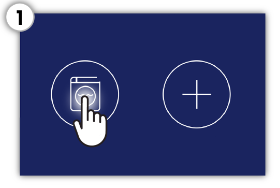
2. Press the oven icon to connect. Press Next
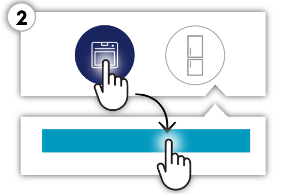
3. Prepare your home WiFi credentials. Press Next
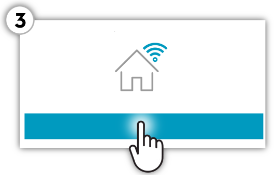
4. Check if your oven has WiFi on. Press Next
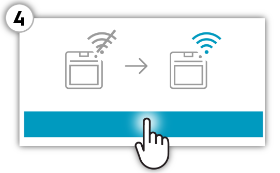
5. Press the Home button and go to the WiFi settings on your phone
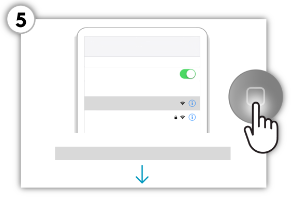
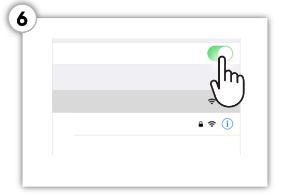
6. Turn on WiFi. Select WiFi that begins with "AJ_". Return to the app
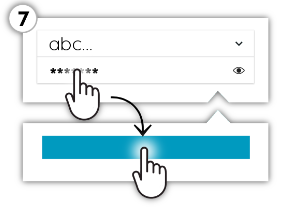
7. Enter your WiFi credentials. Press Continue
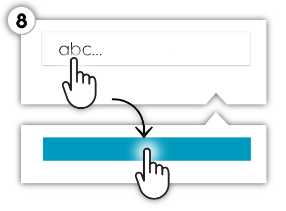
8. Name your oven. Press Register Now.
Was this article helpful?
Related Articles
- How to set a cooker timer (duration) / minute minder
- How to clean the Electrolux oven with pyrolytic function? (video)
- How to Set the Oven Clock
- Oven displays SAFE or padlock symbol
- Oven light does not work
- Symbols and functions on your Electrolux oven
- How To Remove Oven Shelf Supports For Cleaning
- Appliance Reset - How to reset the appliance?
- How to use Catalytic Cleaning on your Electrolux oven
- Oven clock flashes or time displaying 00:00 / 12:00 - Electrolux
Related Articles
- How to set a cooker timer (duration) / minute minder
- How to clean the Electrolux oven with pyrolytic function? (video)
- How to Set the Oven Clock
- Oven displays SAFE or padlock symbol
- Oven light does not work
- Symbols and functions on your Electrolux oven
- How To Remove Oven Shelf Supports For Cleaning
- Appliance Reset - How to reset the appliance?
- How to use Catalytic Cleaning on your Electrolux oven
- Oven clock flashes or time displaying 00:00 / 12:00 - Electrolux